 Farid Zaripov
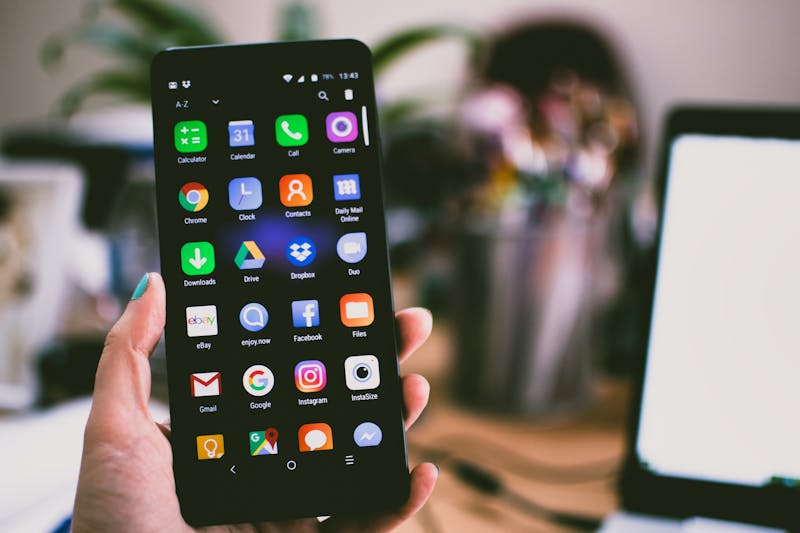
Tired of the same default ringtone that everyone around you has? Creating a custom ringtone from your favorite song is easier than you think — and you do not need to pay for ringtone apps or install desktop software. In this guide, we will walk through the entire process using free browser-based tools.
Why Make Your Own Ringtone?
There are plenty of reasons to ditch the stock ringtones:
- Personalization — your phone sounds like you, not like everyone else in the room
- No ads or subscriptions — ringtone apps are notorious for intrusive ads and recurring charges
- Any song you want — use that chorus, guitar solo, or iconic intro that you love
- Different tones for different contacts — instantly know who is calling without looking at your screen
Ringtone Requirements by Platform
Before you start cutting, you need to know what your phone expects:
| Platform | Format | Max Duration | Notes |
|---|---|---|---|
| iPhone | M4R (AAC renamed) | 40 seconds | Must be added via iTunes, Finder, or GarageBand |
| Android | MP3, OGG, WAV | No hard limit | Simply place in the Ringtones folder |
| Samsung | MP3, OGG, M4A | No hard limit | Can set directly from the music player |
The key difference: iPhone requires M4R format and a 40-second maximum. Android is far more flexible — any common audio format works, and there is no enforced length cap (though 30–40 seconds is ideal).
Step 1: Choose the Right Section of the Song
A great ringtone does not start from the beginning of a track. Here are tips for picking the perfect segment:
- Use the chorus or hook — this is the most recognizable part and will grab your attention immediately
- Avoid intros — most song intros are too quiet or generic to work as a ringtone
- Pick a clean entry point — start on a beat or at the beginning of a phrase, not in the middle of a word
- Keep it between 20 and 30 seconds — long enough to recognize, short enough to not annoy everyone
- Listen to how it loops — if your phone repeats the ringtone, make sure the end does not clash with the beginning
Step 2: Trim the Audio
Upload your song to the audio trimmer and cut out the section you want. The visual waveform makes it easy to find the exact moment. You can zoom in for sample-accurate precision, and the playback preview lets you hear your selection before committing.
A few trimming best practices:
- Start slightly before the beat — phones sometimes take a fraction of a second to begin playback
- End on a natural pause or the end of a musical phrase
- If your source is a full album track, consider isolating the section first, then fine-tuning
Step 3: Add Fade In and Fade Out
A raw cut often sounds abrupt. Adding a short fade effect makes your ringtone sound polished and professional:
- Fade in (0.3–0.5 seconds) — the ringtone gently rises instead of blasting immediately. This sounds more natural, especially if the clip starts mid-phrase.
- Fade out (0.5–1.0 seconds) — when the call is answered, the audio trails off smoothly instead of cutting dead. This also helps if your clip ends mid-note.
These short fades are subtle but make a noticeable difference in perceived quality.
Step 4: Adjust Volume
Your ringtone needs to be heard in noisy environments. If the original recording is quiet, boost the volume before converting. Use the volume booster to increase loudness by 3–6 dB, and make sure the peaks do not clip. A normalized ringtone at -1 dB peak is ideal — loud enough to hear, clean enough to sound good.
Step 5: Convert to the Right Format
Now convert your trimmed, faded audio to the format your phone needs:
For iPhone (M4R)
Use the ringtone maker — it handles trimming, fade, and M4R conversion in one step. The tool automatically limits duration to 40 seconds and outputs a properly formatted M4R file that iTunes and Finder will recognize.
For Android (MP3)
Use the audio converter to export as MP3 at 192–256 kbps. This gives you a good balance between quality and file size. You can also use OGG Vorbis for slightly better quality at the same file size.
Step 6: Transfer to Your Phone
iPhone Transfer Methods
- iTunes / Finder (macOS Catalina+) — connect your iPhone, drag the M4R file into the Tones section, then go to Settings → Sounds → Ringtone to select it
- GarageBand (no computer needed) — save the M4R to Files on your iPhone, open GarageBand, import the audio, then share it as a ringtone directly
- AirDrop — send the M4R from a Mac to your iPhone, and iOS will prompt you to save it as a ringtone
Android Transfer Methods
- Direct download — if you made the ringtone on your phone browser, it is already in your Downloads folder. Move it to the
Ringtonesfolder using any file manager. - USB transfer — connect to your computer and copy the file to
Internal Storage/Ringtones/ - Cloud storage — upload to Google Drive or Dropbox, download on your phone, move to the Ringtones directory
After transferring, go to Settings → Sound → Phone Ringtone and select your custom tone.
Tips for the Best Ringtone
- Avoid songs with a slow build — you need something that is recognizable within the first 2–3 seconds
- Test at low volume — your ringtone should be identifiable even when your phone is in a bag or across the room
- Consider instrumental sections — lyrics can sound odd when cut mid-sentence, while instrumentals are more forgiving
- Match the mood — an energetic tone for your alarm, a calm melody for general calls, a distinctive sound for important contacts
- Check the file size — a 30-second MP3 at 192 kbps is about 700 KB, which is negligible on modern phones
Common Mistakes to Avoid
- Making it too long — anything over 30 seconds is unnecessary and often annoying for people around you
- Starting with silence — always trim dead air at the beginning, or you will not hear the phone ring immediately
- Skipping fade out — an abrupt ending sounds amateurish and jarring, especially if the ringtone loops
- Using low-quality sources — a 96 kbps YouTube rip will sound terrible as a ringtone. Start with at least 256 kbps source material.
- Forgetting about volume — a classical piece or acoustic track at normal level will be inaudible in a busy street
All-in-One Alternative: Ringtone Maker
If you want the simplest possible workflow, the ringtone maker tool combines all these steps. Upload any audio file, select your section visually, add fade effects, and download the finished ringtone in M4R (iPhone) or MP3 (Android) format — runs in your browser via FFmpeg WebAssembly, completely free.
